Modify Profiles & Channels
The Modify Profiles & Channels screen lets you manage every profile you've created in Twintual. Each profile is a separate identity within the app — for example, a Personal profile with your personal Gmail and WhatsApp, and a Work profile with your work Outlook and Slack. Twintual keeps everything cleanly separated so the right context shows up for the right conversations.
What's on this screen
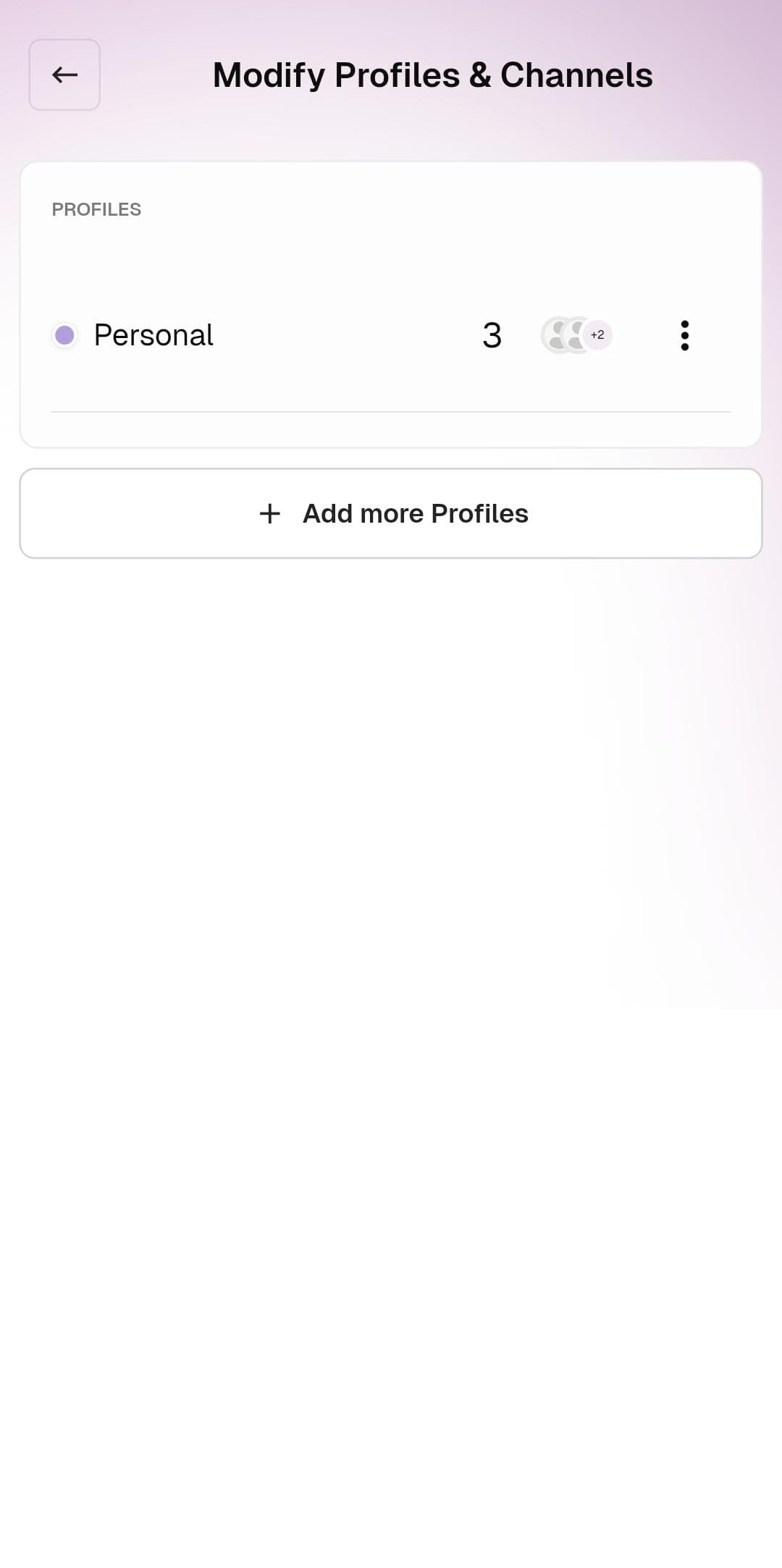
Profiles list — Each profile is shown as a row with its name, color dot, channel count, and the avatar stack of channels currently connected to it. The three-dot menu on the right opens options to rename the profile, change its color, or delete it.
Add more Profiles — The button at the bottom of the list creates a new profile from scratch. You can pick a preset like Work, Personal, or Family, or create a fully custom profile with your own name and color.
What to do
- Tap a profile row to open it and edit its connected channels (add, remove, or reconfigure Gmail, Outlook, Slack, etc.)
- Tap the three-dot menu to rename, recolor, or delete a profile
- Tap Add more Profiles to create a new one
Tips
- A profile must have at least one channel connected before Twintual can summarize messages for it
- Deleting a profile does not delete the underlying accounts — it just unlinks them from Twintual
- You can switch between profiles at any time from the Home screen's profile pill in the top-right corner