Manage Contacts
Twintual aggregates contacts from every connected channel — your Gmail address book, your Outlook contacts, the people you message on Slack — into one unified list. The Manage Contacts screen is where you review that list, merge duplicates, and keep your contact graph clean so messages stay grouped under the right person.
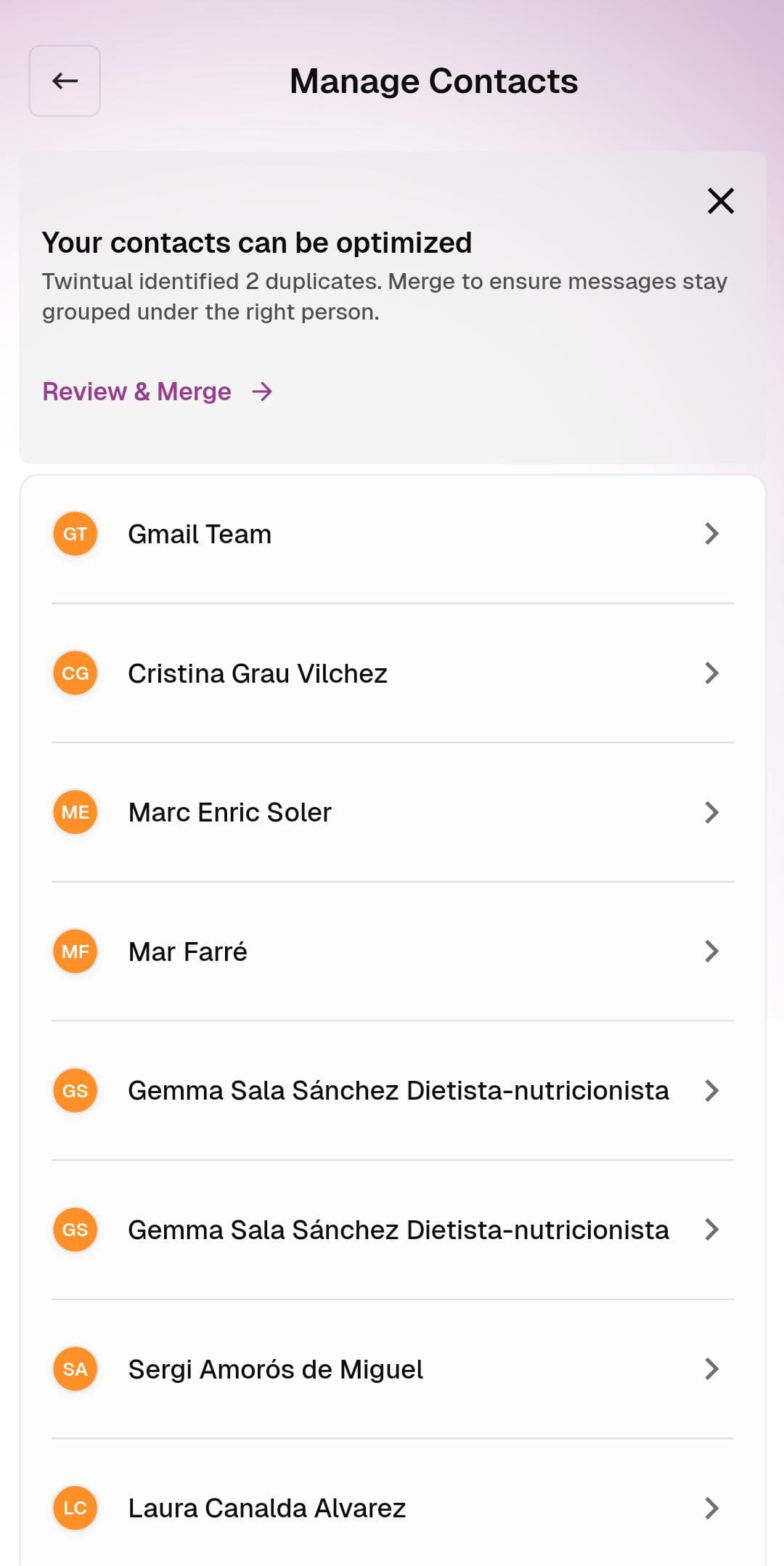
What's on this screen
Optimization banner — A highlighted card at the top appears whenever Twintual detects duplicate or near-duplicate contacts (for example, Twintual identified 2 duplicates. Merge to ensure messages stay grouped under the right person.). Tap Review & Merge → to walk through each duplicate side-by-side and confirm which records should combine.
Contacts list — Every contact Twintual knows about, shown in alphabetical order with their initials in a colored avatar. The arrow on the right opens that contact's profile, showing every message thread Twintual has across every channel for that person.
What to do
- Tap Review & Merge → to handle duplicate contacts. Twintual proposes a merge; you confirm or skip
- Tap any contact row to view their full message history across all channels
- Tap the X in the top-right of the banner to dismiss the optimization suggestion if you'd rather review duplicates later
Tips
- Merging is non-destructive — Twintual keeps a record of the underlying contacts even after merging, so nothing is lost
- Duplicates usually appear when the same person reaches out from multiple addresses (e.g., a personal Gmail and a work email)
- Keeping your contact list clean improves the quality of Twintual's reply suggestions because it has more context per person