Reply with Twintual
After tapping Reply with Twintual on a summary card, Twintual reads the full thread, applies the tone preferences you set in Tone Setup, and drafts a complete reply for you. You can send it as-is, edit it first, or discard it and try again.
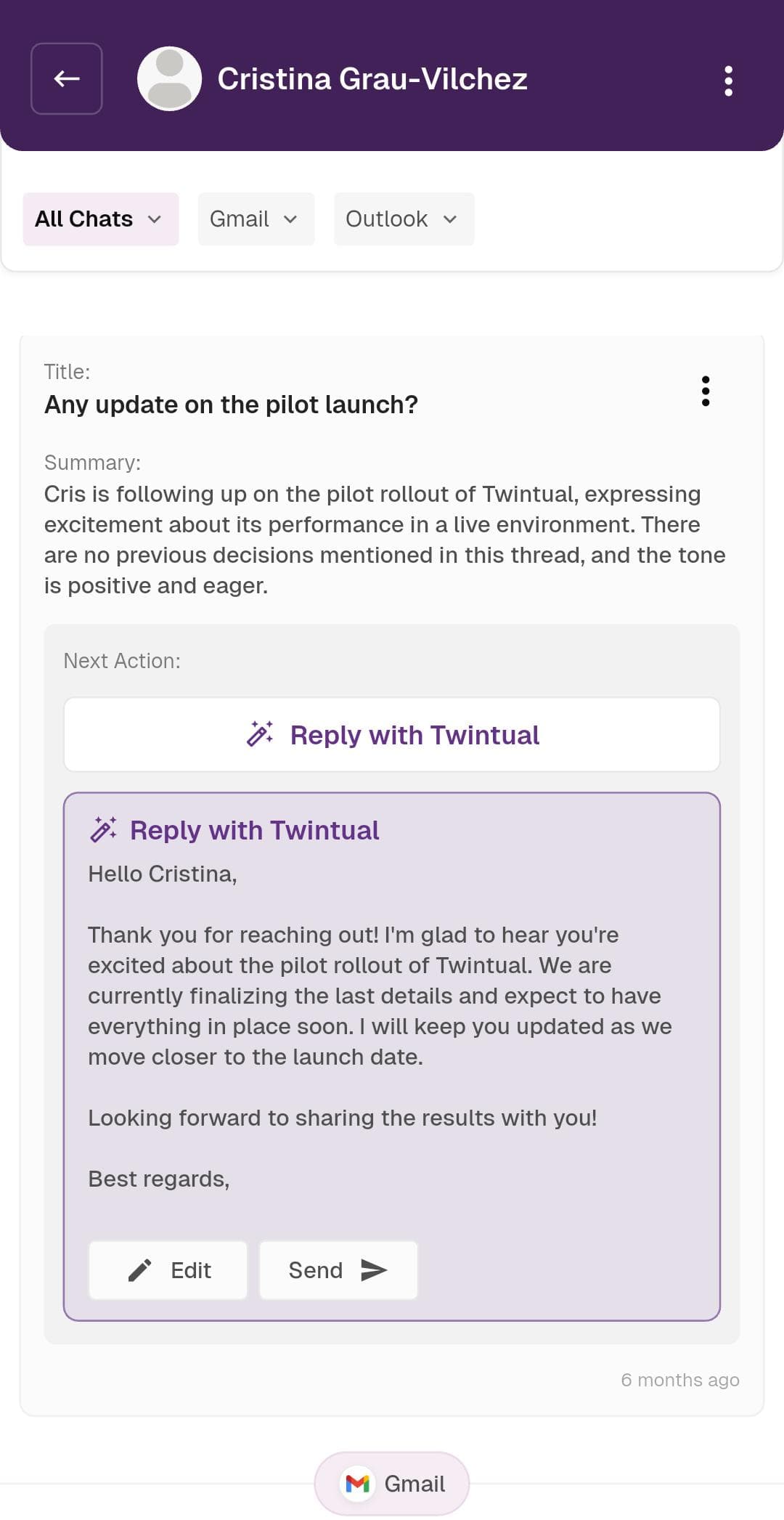
What's on this screen
Generated reply card — A purple-bordered card appears below the summary, labeled Reply with Twintual, containing a full draft email or message. The draft uses:
- The recipient's actual name (for example, Hello Cristina,)
- Context from the original thread (in this case, the pilot rollout of Twintual)
- The tone you set during Tone Setup (Polite & Professional, Balanced, Neutral, etc.)
- A proper sign-off (Best regards,)
Edit button — Opens the draft in an editable text field so you can tweak wording, add a sentence, or correct anything before sending.
Send button — Sends the draft as-is through the original platform (Gmail, Outlook, etc.) using the OAuth connection you authorized during Connect Accounts.
How it works
Twintual combines three inputs to draft each reply:
- The full message thread — every email or message exchanged with this contact, not just the most recent one
- Your tone profile — the preferences you set in Tone Setup (preferred tone, communication focus, language level, and the writing sample you provided)
- The recommended Next Action — Twintual's interpretation of what the sender is actually asking for
The result is a draft that sounds like you wrote it, not like a generic AI assistant.
What to do
Read the draft. If it looks good, tap Send and you're done. If anything needs adjusting, tap Edit, make your changes in the text field, then send. If the draft feels off, you can dismiss it and Twintual will generate a fresh attempt.
Back to the start
Return to the Quickstart overview or jump back to Home Dashboard.