Home Dashboard
Once setup is complete, Twintual opens to your Home Dashboard — a calm, single-screen view of how much time the app has saved you and which conversations are waiting for your attention.
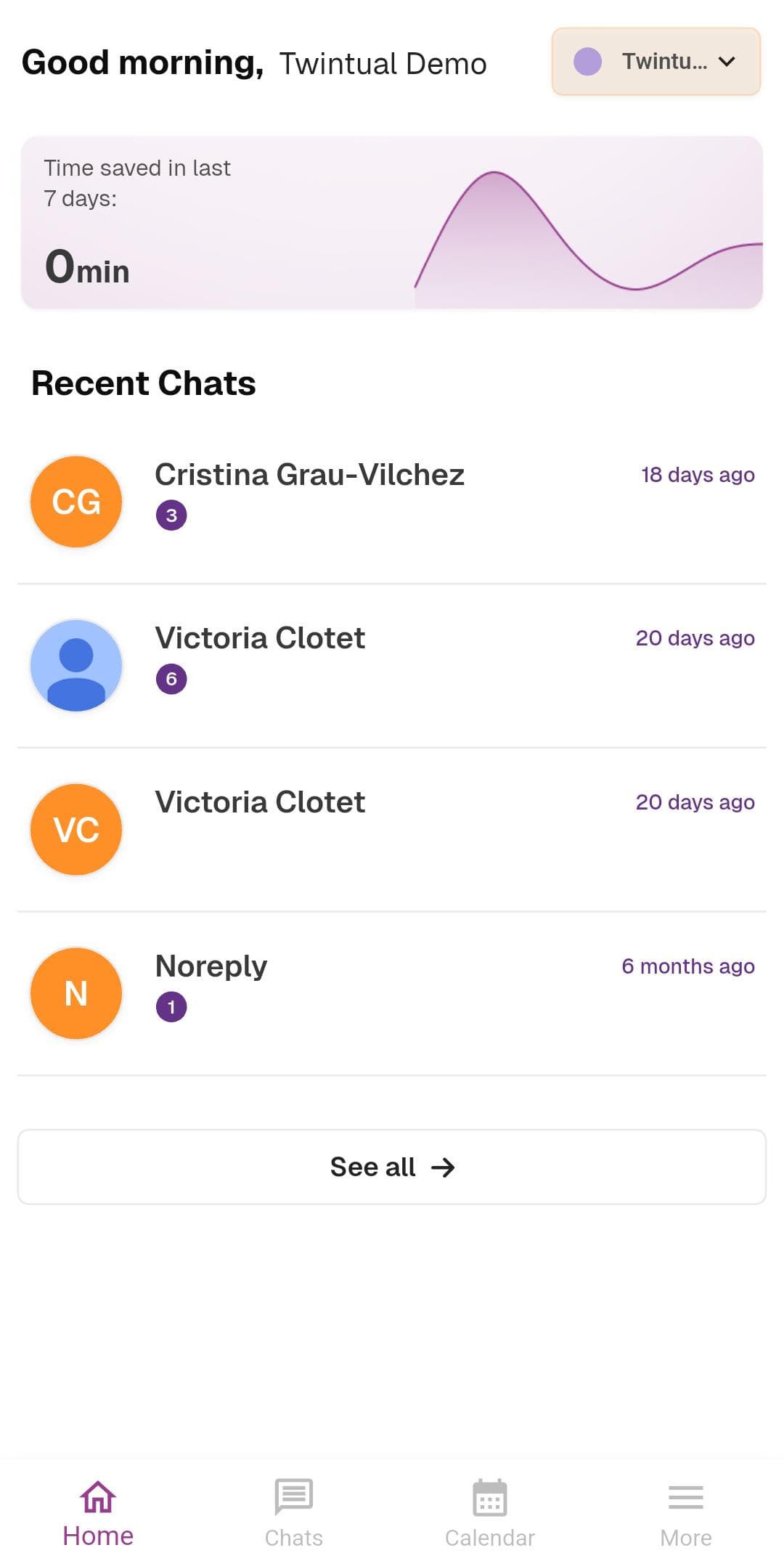
What's on this screen
Greeting and profile switcher — A personalized greeting like Good morning, Twintual Demo sits at the top, with a profile pill on the right that lets you switch between the profiles you set up earlier (Work, Personal, Family, or custom).
Time saved card — A soft purple card shows Time saved in last 7 days with a number (for example, 0 min if you're just getting started) and a small trend graph that fills in as you use Twintual more.
Recent Chats — A scrollable list of conversations across all your connected accounts. Each row shows the contact's name (or initials in a colored avatar if no picture is set), an unread count badge, and when the most recent message arrived. A See all button at the bottom opens the full chat list.
Bottom navigation — Four tabs at the bottom of the screen: Home (current), Chats, Calendar, and More.
What to do
Tap any conversation in Recent Chats to open it and see Twintual's AI-generated summary and reply suggestions.
Next step
Continue to Chat View & Summaries to see what happens when you open a conversation.