Outlook Authentication
Connecting Outlook uses Microsoft's standard OAuth flow. Twintual never sees your Microsoft password — Microsoft handles authentication directly and hands Twintual a scoped access token.
Step 1 · Tap Connect
On the Connect Accounts screen, tap the Connect button next to Outlook. Twintual opens a Microsoft sign-in window in a secure browser view.
Step 2 · Sign in to Microsoft
Enter the email address of the Microsoft account you want to link — this can be a personal @outlook.com or @hotmail.com address, or a work or school account on Microsoft 365. Tap Next to continue.
If your organization uses single sign-on, you may be redirected to your company's login page at this point.
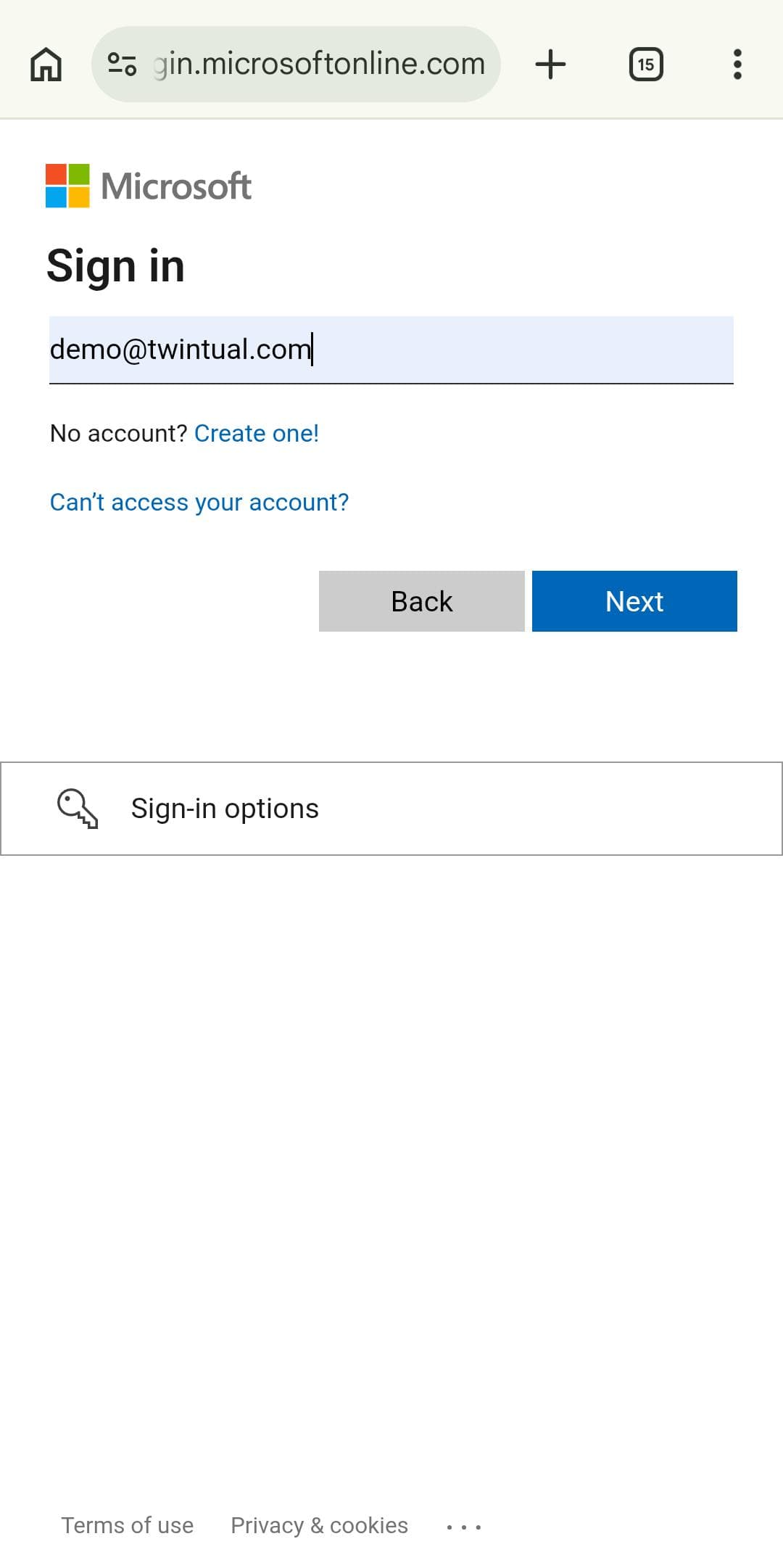
Step 3 · Get a verification code
For added security, Microsoft sends a one-time verification code to the email you entered. The next screen confirms the email and asks you to request the code. Tap Send code.
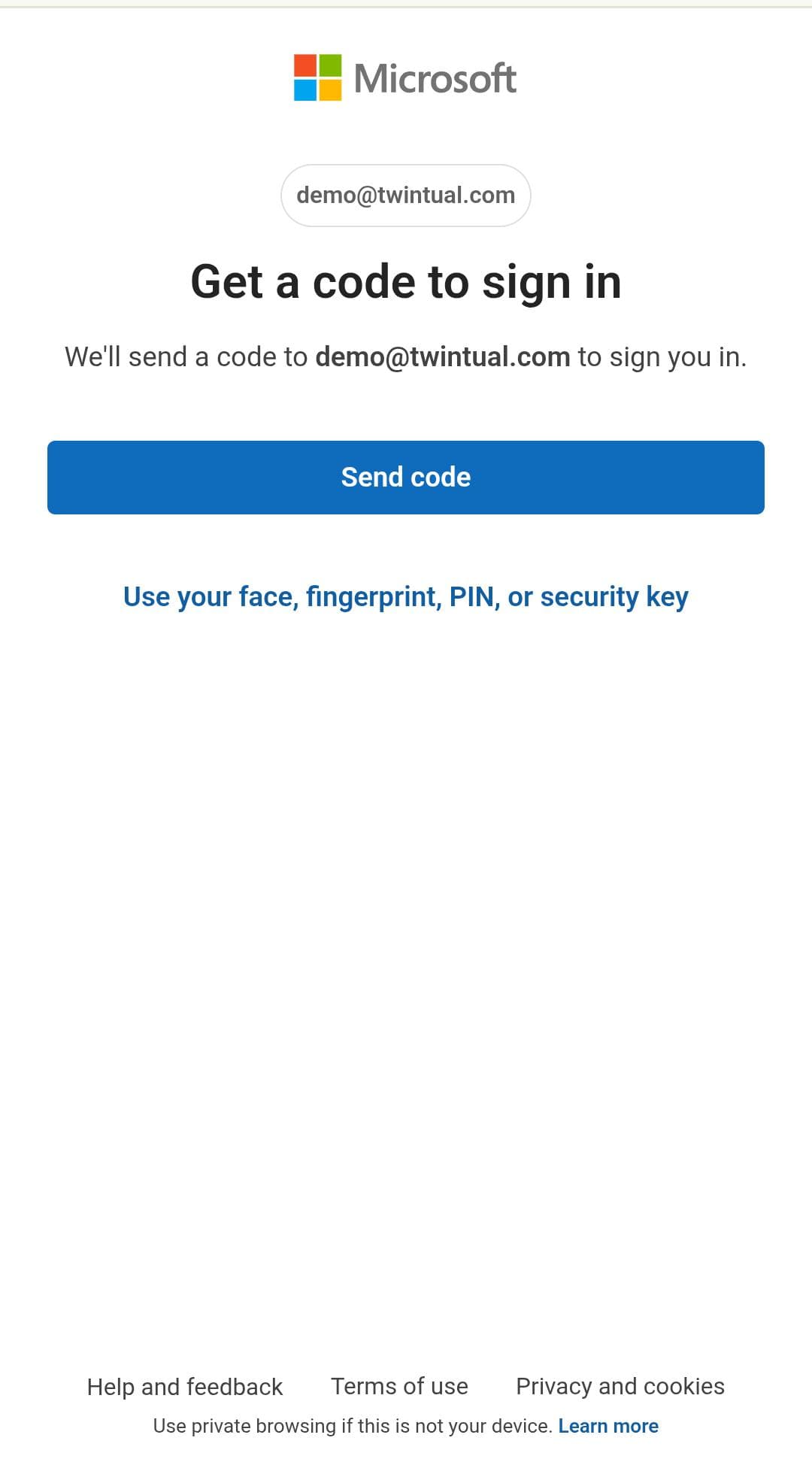
Check your inbox for the code from Microsoft, then enter it on the screen that follows.
If you'd rather skip the email code and use your device's biometrics, tap Use your face, fingerprint, PIN, or security key at the bottom of the screen instead.
Step 4 · Review permissions
Once you're authenticated, Microsoft shows a consent screen listing exactly what Twintual is asking for:
- Read mail you have permission to access — so Twintual can summarize Outlook threads
- Send mail as you — so Reply with Twintual can send drafts through your Outlook account
- Read your contacts — so replies are properly addressed
Review the scopes carefully. If you're not comfortable granting any of them, tap Cancel and the connection won't go through. For work or school accounts, your organization's admin may have already pre-approved these scopes, or you may need admin consent before the connection completes.
Step 5 · Connection complete
Tap Accept to finalize. Microsoft redirects you back to Twintual, and the Outlook row on the Connect Accounts screen now shows your email address with a green checkmark, confirming the link is live.
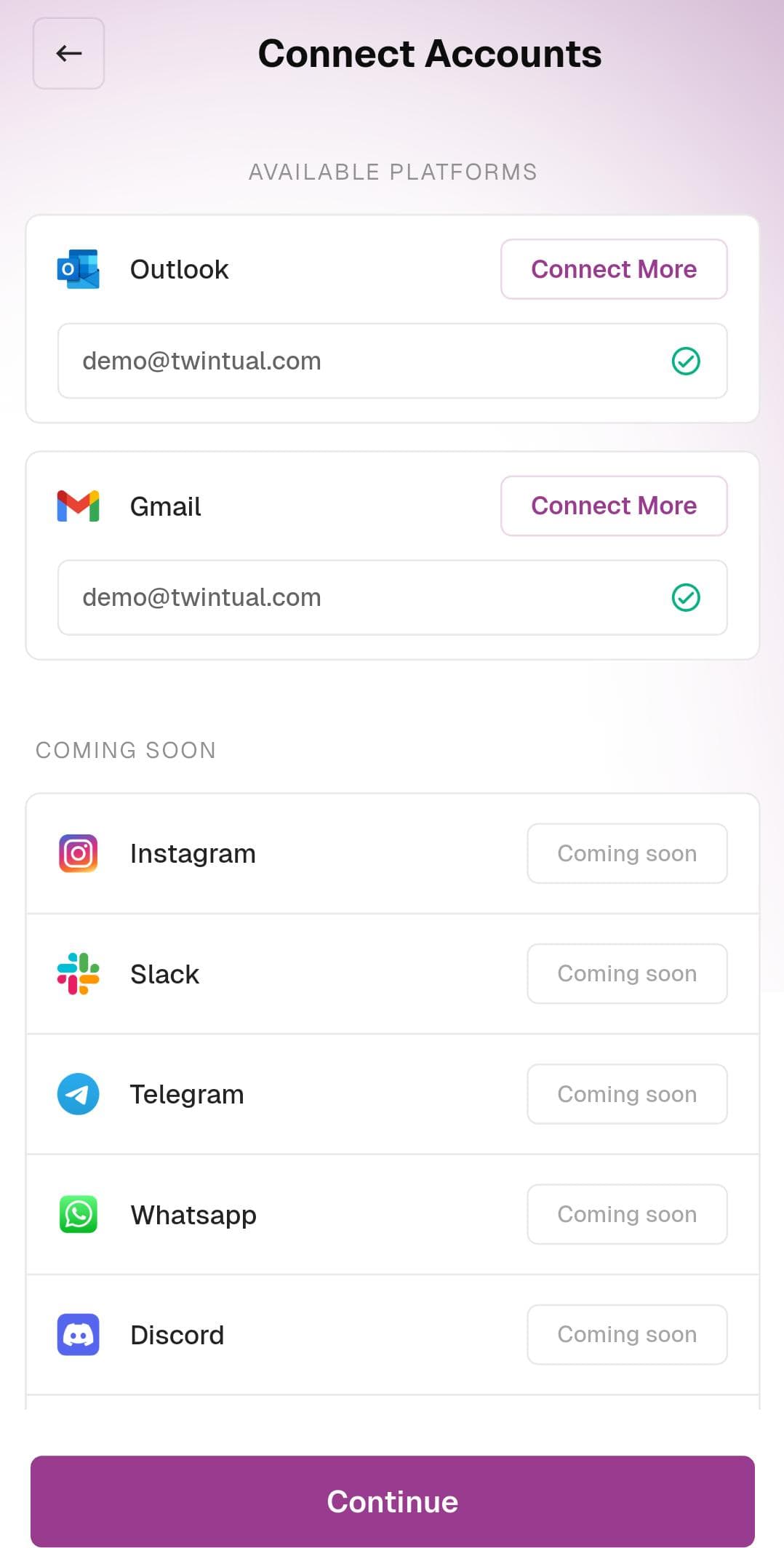
Connecting more than one Outlook account
To link a second Outlook account (for example, a work Microsoft 365 account in addition to a personal one), tap Connect More on the Outlook row and repeat steps 2–5 with the other account.
Troubleshooting Outlook
- "Need admin approval" message — work and school accounts may require your IT administrator to approve Twintual for the whole organization. Forward the consent screen to your admin or ask them to pre-approve Twintual in Azure AD.
- Code never arrives — check your spam folder, and double-check the email address shown on the Get a code to sign in screen. If the email is wrong, tap back and re-enter the correct one in Step 2.
- Connection drops after a few days — Microsoft access tokens expire on a set schedule. Reopen Connect Accounts and tap Reconnect next to Outlook to refresh.
Next step
Once Outlook is connected, you can also connect Gmail, add a Custom Email, or skip ahead to Tone Setup to teach Twintual how you communicate.