Twintual Profile Setup
Profile Setup is a two-stage flow. First, Twintual explains the three steps of getting set up with an overview screen, then you actually pick your profile type and give it a color so it's easy to recognize at a glance.
Stage 1 · Account Setup Steps Overview
Before jumping into the form, Twintual surfaces a friendly overview titled Account Setup Steps that walks you through what's coming:
- Choose Profile — pick where this account belongs (Work, Personal, or Family, or create a custom profile)
- Connect your accounts — link the apps you want Twintual to manage (Gmail, WhatsApp, LinkedIn, Outlook, Slack, and more)
- All Set — Twintual will handle the rest
A tall Got it! button at the bottom dismisses the overview and takes you into the actual setup.
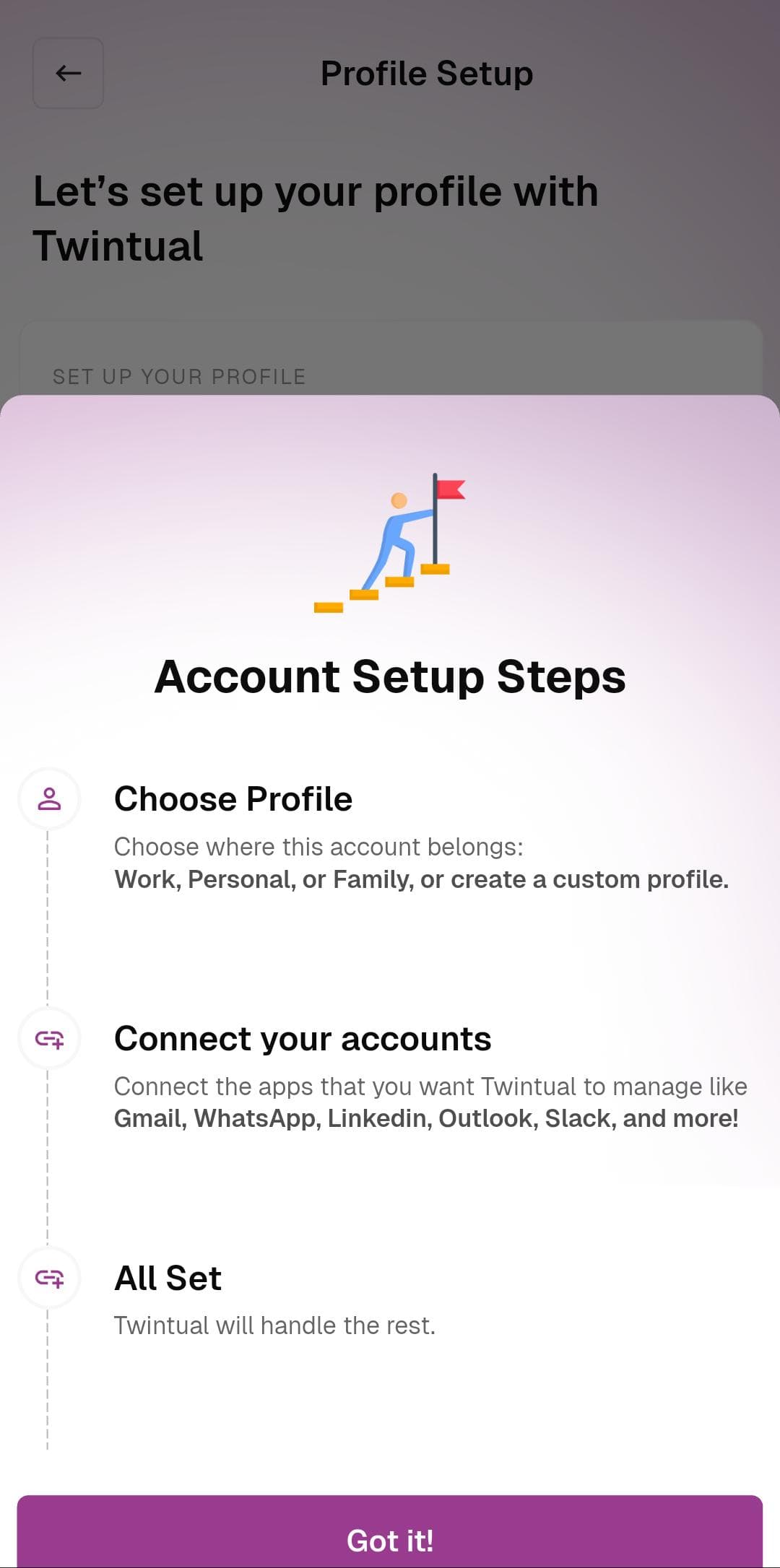
What to do: Read through the three steps so you know what's coming, then tap Got it! to start.
Stage 2 · Choose Profile and Color
This is the real setup screen. Under Let's set up your profile with Twintual, you'll see two sections:
Set up your profile — choose between three preset profiles (Work, Personal, Family), or skip the presets entirely and type your own name into Create a Custom Profile (for example, "John Doe").
Give your profile a color — pick a color from the dropdown (defaults to Red) so this profile is instantly recognizable in the app, especially if you create multiple profiles later.
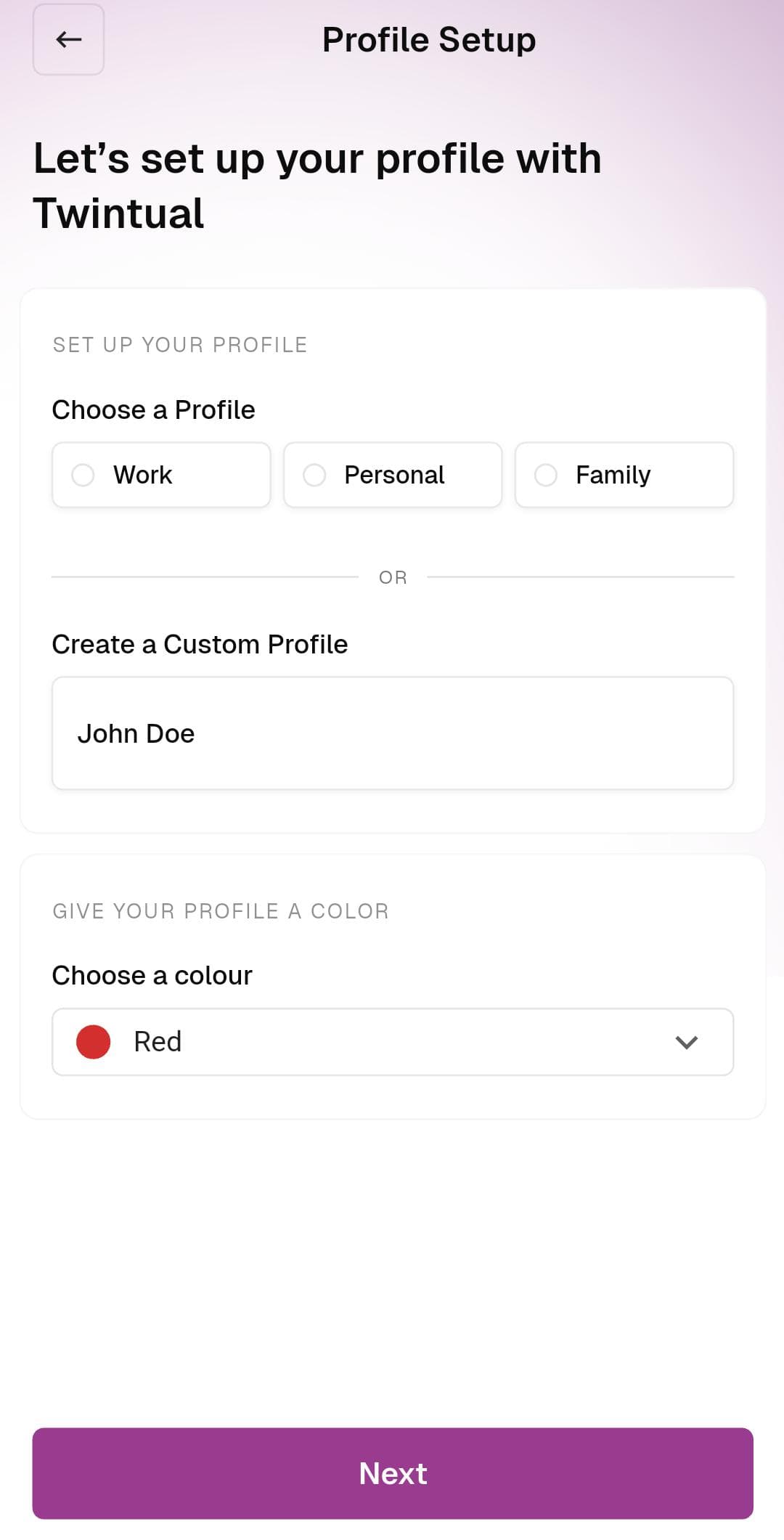
What to do: Either tap one of the preset profiles (Work / Personal / Family) OR type a custom profile name. Then open the color dropdown and pick a color you'll recognize. Tap Next when done.
Next step
Continue to Connect Other Accounts to link the apps Twintual will manage.