Gmail Authentication
Connecting Gmail uses Google's standard OAuth flow. Twintual never sees your Google password — Google handles authentication directly and hands Twintual a scoped access token.
Step 1 · Tap Connect
On the Connect Accounts screen, tap the Connect button next to Gmail. Twintual opens a Google sign-in window where you can pick which Google account to link.
Step 2 · Review permissions
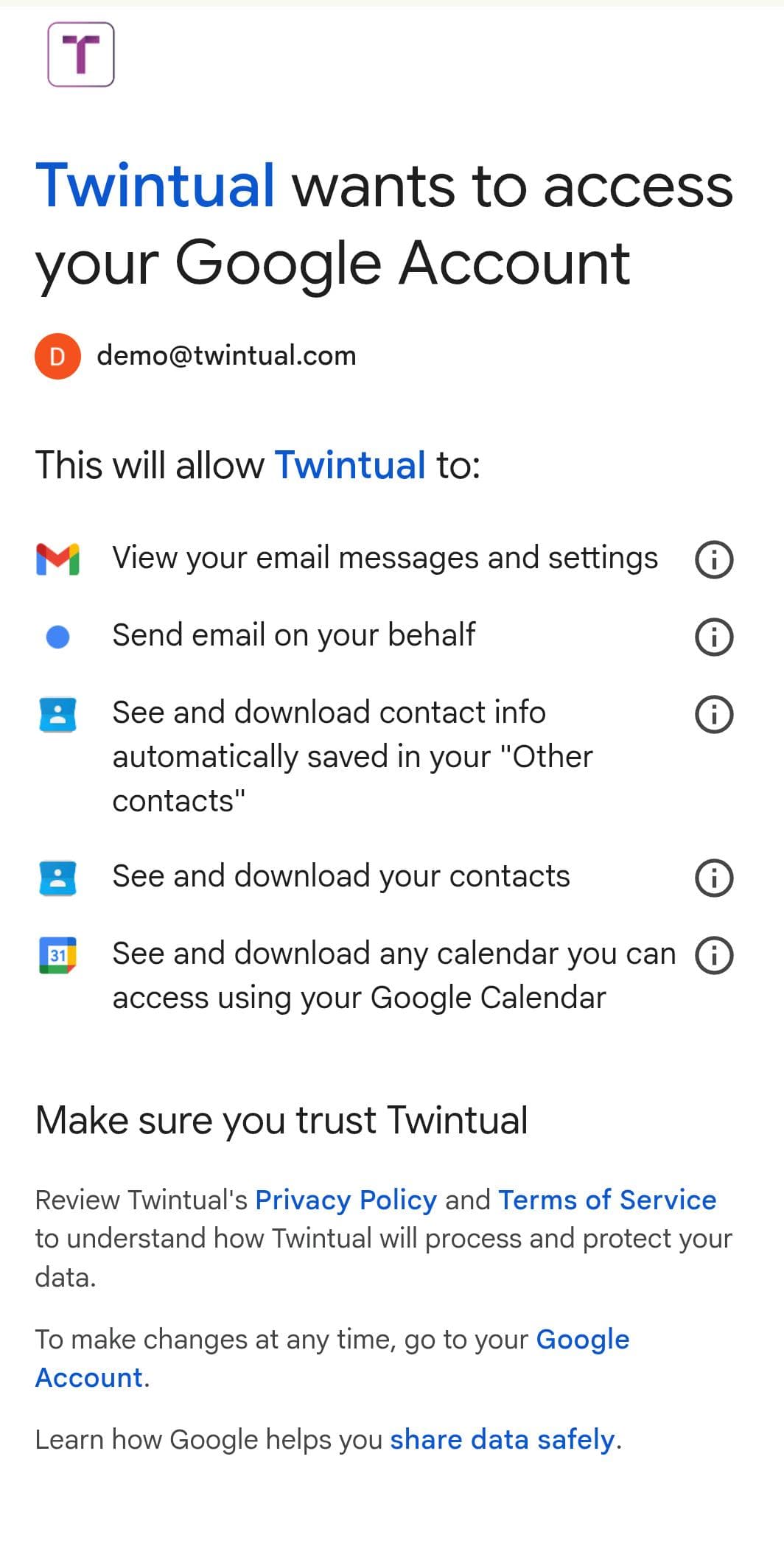
After you choose your Google account, Google shows a consent screen titled "Twintual wants to access your Google Account" listing exactly what Twintual is asking for:
- View your email messages and settings — so Twintual can summarize threads and suggest replies
- Send email on your behalf — so the Send button in Reply with Twintual works
- See and download contact info automatically saved in your "Other contacts" — so replies are properly addressed
- See and download your contacts — for the same reason
- See and download any calendar you can access using your Google Calendar — so Twintual can surface relevant meetings alongside email threads
Review the scopes carefully. If you're not comfortable granting any of them, tap Cancel and the connection won't go through. Otherwise, tap Continue to proceed.
Step 3 · Grant access
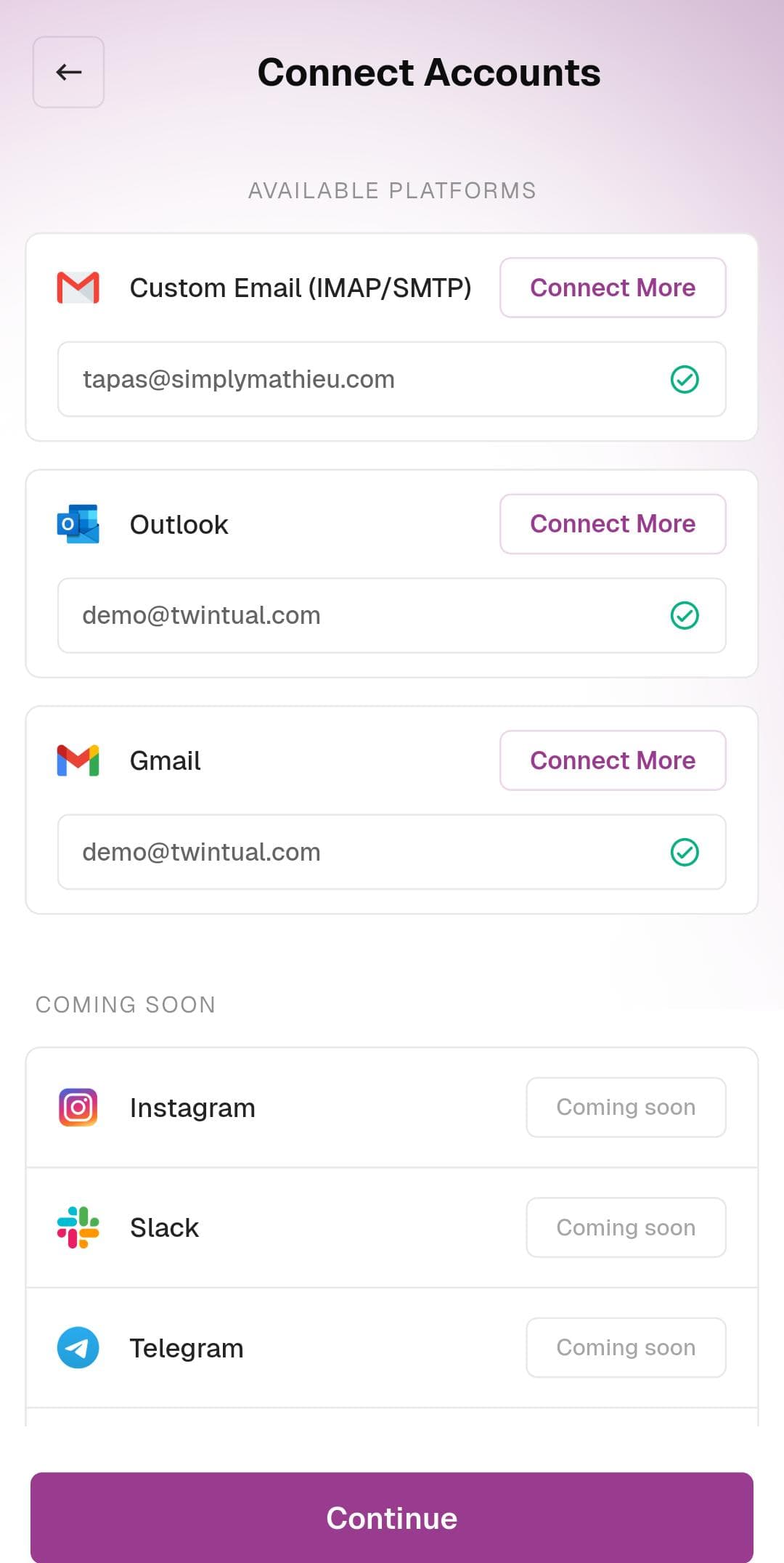
Tap Allow on the final consent prompt. Google redirects you back to Twintual, and the Gmail row on the Connect Accounts screen now shows your email address with a green checkmark, confirming the link is live.
Connecting more than one Gmail account
To link a second Gmail (for example, a work account in addition to a personal one), tap Connect More on the Gmail row and repeat steps 1–3 with the other account.
Troubleshooting Gmail
- "This app isn't verified" warning — if you see this during testing, tap Advanced then Go to Twintual (unsafe) to proceed. This warning disappears once the app passes Google's verification review.
- Connection drops after a few days — Google access tokens expire periodically. Reopen Connect Accounts and tap Reconnect next to Gmail to refresh.
- Wrong Google account picked — if you accidentally connected the wrong account, tap Disconnect on the Gmail row, then Connect again to choose a different one.
Next step
Once Gmail is connected, you can also connect Outlook, add a Custom Email, or skip ahead to Tone Setup to teach Twintual how you communicate.