Chat View & Summaries
Tapping a conversation from the Home Dashboard opens the Chat View — this is where Twintual's AI does the heavy lifting. Instead of showing you every email or message in full, Twintual reads the entire thread and gives you an instant Title, Summary, and Next Action for each one.
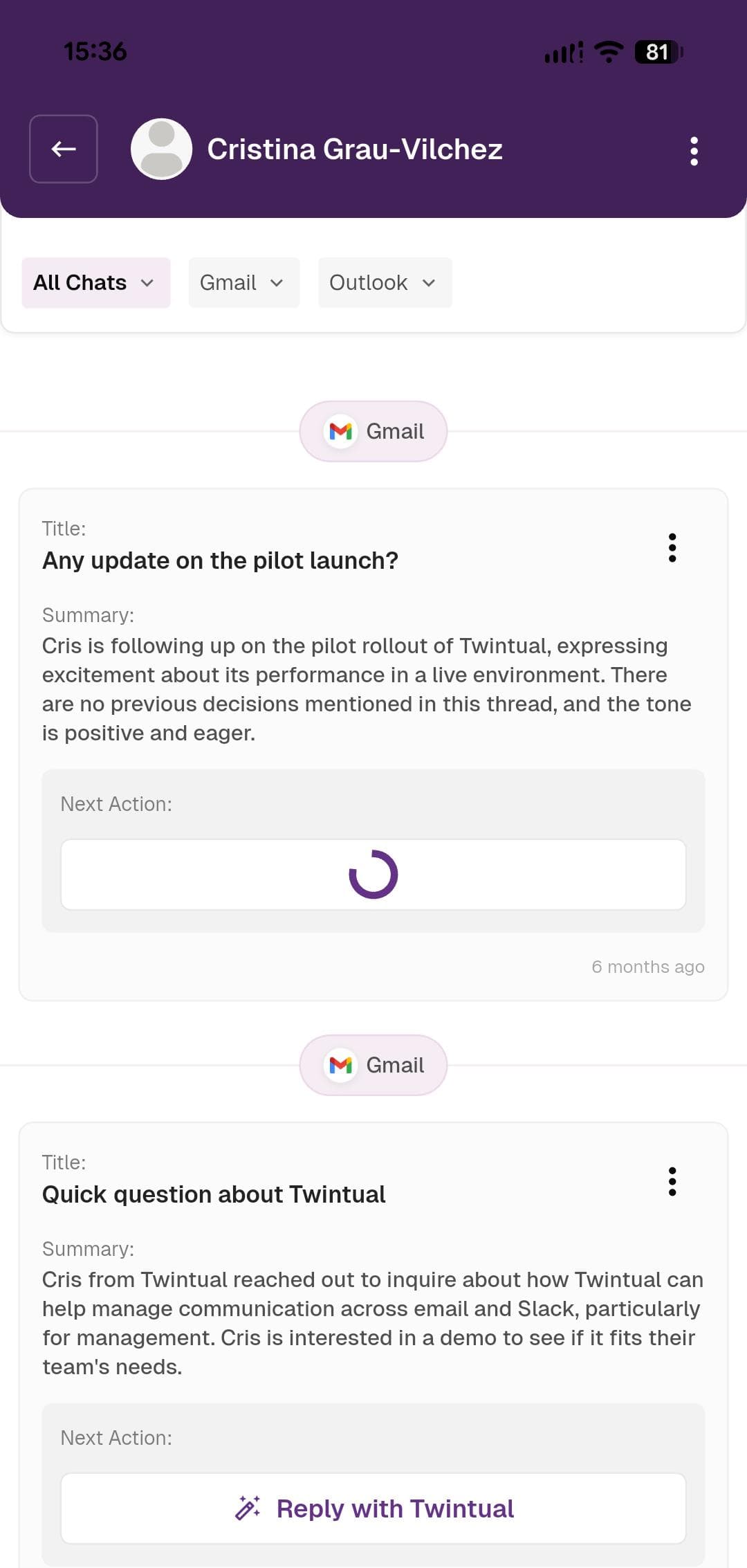
What's on this screen
Header bar — The contact's name (for example, Cristina Grau-Vilchez) sits in the purple header with a back arrow on the left and a three-dot menu on the right for chat-level options.
Source filters — Just below the header, three filter pills (All Chats, Gmail, Outlook) let you narrow the conversation to a single channel. By default, All Chats is selected so you see every message from this person across every connected platform.
Source label — Each summary card is tagged with the platform it came from (a small Gmail or Outlook pill above the card) so you always know where a message originated.
Summary card — Each card shows three things:
- Title — a short AI-generated headline like Any update on the pilot launch?
- Summary — a 2–3 sentence plain-English recap of what the message is really about, including tone cues (for example, "the tone is positive and eager")
- Next Action — the recommended next step, with a button that triggers Twintual's reply generation
Timestamp — Each card shows when the underlying message arrived (for example, 6 months ago) in the bottom right.
What to do
Read the Summary to get the gist of the thread without opening the original email. When you're ready, tap Reply with Twintual under Next Action to have Twintual draft a response in your tone.
Next step
Continue to Reply with Twintual to see how the AI-generated reply works.