Custom Email (IMAP/SMTP)
Not every email lives on Gmail or Outlook. If your email is hosted somewhere else — a custom domain, a work mail server, or a provider like Zoho, Fastmail, ProtonMail, or iCloud — Twintual can still connect to it using the IMAP and SMTP protocols that every email provider supports.
What are IMAP and SMTP?
These are the two open standards that have powered email since the beginning of the internet, and they let Twintual talk to any email server in the world without needing a special integration:
- IMAP (Internet Message Access Protocol) lets Twintual read the emails sitting in your mailbox.
- SMTP (Simple Mail Transfer Protocol) lets Twintual send emails out through your provider's server when you tap Send in Reply with Twintual.
To connect a custom email, you'll provide both — the address of your provider's IMAP server (for incoming mail) and SMTP server (for outgoing mail), along with the standard secure ports and your email credentials. Your provider's help docs will list the exact server addresses to use.
Step 1 · Tap Connect
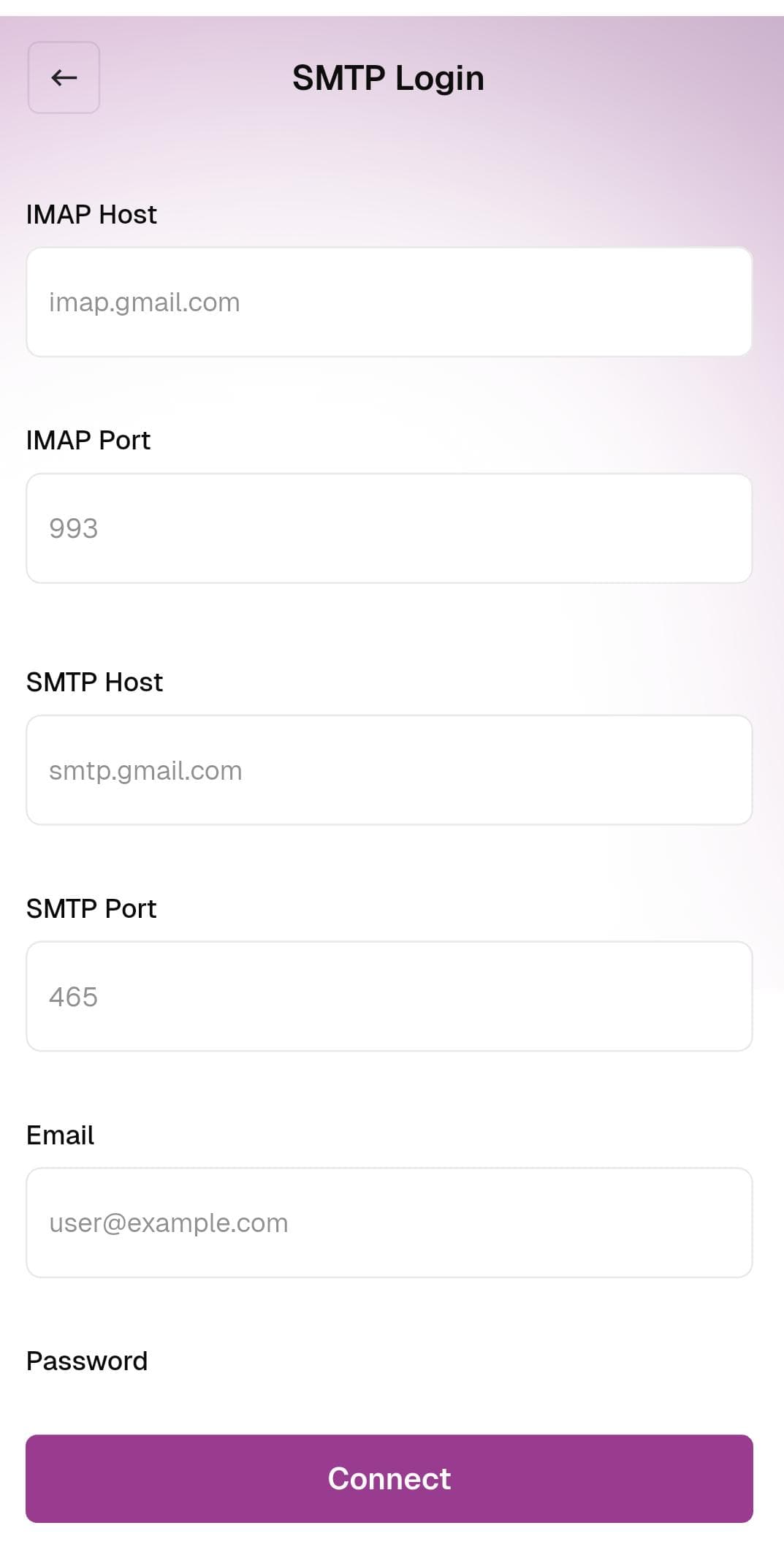
On the Connect Accounts screen, tap the Connect button next to Custom Email (IMAP/SMTP). Twintual opens the SMTP Login form where you'll enter your server details.
Step 2 · Fill in the SMTP Login form
The form asks for six pieces of information. Pre-filled placeholder values give you a hint about what each field expects:
- IMAP Host — your provider's incoming mail server address (for example, imap.gmail.com, imap.zoho.com, or mail.yourcompany.com)
- IMAP Port — usually 993 for secure connections (the placeholder shows the default)
- SMTP Host — your provider's outgoing mail server address (for example, smtp.gmail.com, smtp.zoho.com, or mail.yourcompany.com)
- SMTP Port — usually 465 for secure connections (the placeholder shows the default)
- Email — the full email address you want to connect (for example, you@yourcompany.com)
- Password — the password for that email account, or an app-specific password if your provider requires one (see Troubleshooting below)
Tip: Every email provider publishes its own IMAP and SMTP settings in their help docs. If you are unsure what to enter, search the provider name along with the phrase IMAP SMTP settings.
Step 3 · Tap Connect
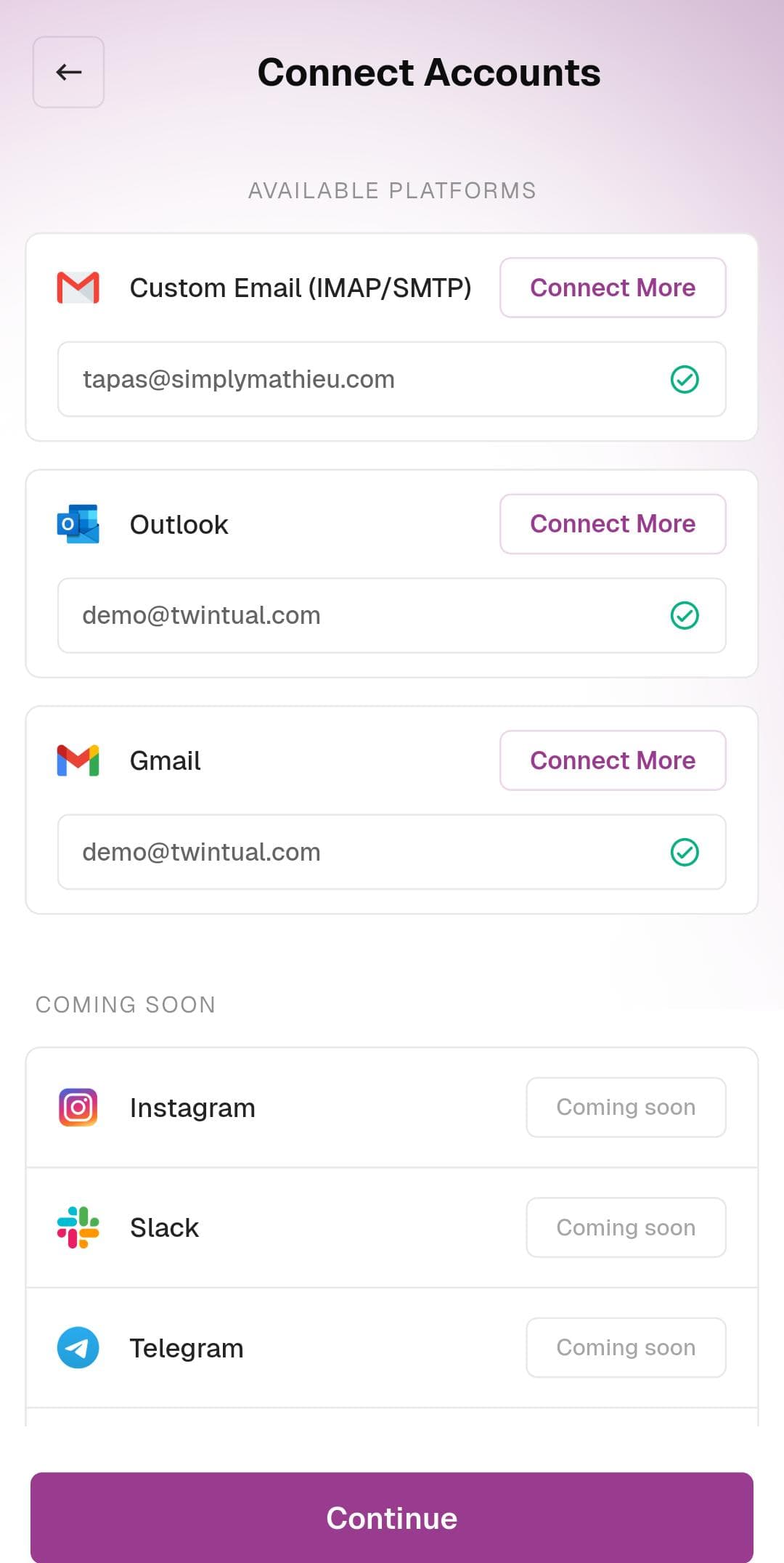
Once all six fields are filled in, tap the Connect button at the bottom of the form. Twintual tests the connection by signing in to both the IMAP and SMTP servers with the credentials you provided. If everything checks out, you're returned to the Connect Accounts screen and the Custom Email row now shows your email address with a green checkmark.
Connecting more than one custom email
To link a second custom email (for example, a second domain or a work address alongside a personal one), tap Connect More on the Custom Email row and fill in the SMTP Login form again with the new account's details.
Troubleshooting Custom Email
- Authentication failed error — double-check the email and password. Many providers (including Gmail) require an app-specific password instead of your regular login password for IMAP/SMTP access. Generate one from your provider's security settings.
- Could not connect to server error — verify the IMAP Host and SMTP Host are typed correctly. A typo in the hostname is the most common cause.
- Wrong port — if your provider uses different ports than the defaults (993 for IMAP, 465 for SMTP), enter the values listed in your provider's help docs. Some providers use port 143 for IMAP without SSL or port 587 for SMTP with STARTTLS.
- Two-factor authentication enabled — if your account has 2FA on, the regular password won't work. Generate an app-specific password instead.
Next step
Once your Custom Email is connected, you can also connect Outlook, connect Gmail, or skip ahead to Tone Setup to teach Twintual how you communicate.