Tone Setup
After connecting your accounts, Twintual walks you through a five-step Tone Setup flow so the AI can match how you actually communicate. Each step builds on the last, and a progress bar at the top of the screen shows where you are in the flow. You can skip the whole thing with Skip for now, or pause and pick it up later with Save & Continue Later.
Step 1 · Occupation / Role
The first step asks for your occupation or role from a dropdown (for example, Technology & IT). This gives Twintual context about the kind of vocabulary and topics that are relevant to your day-to-day, so replies feel grounded in your world instead of generic.
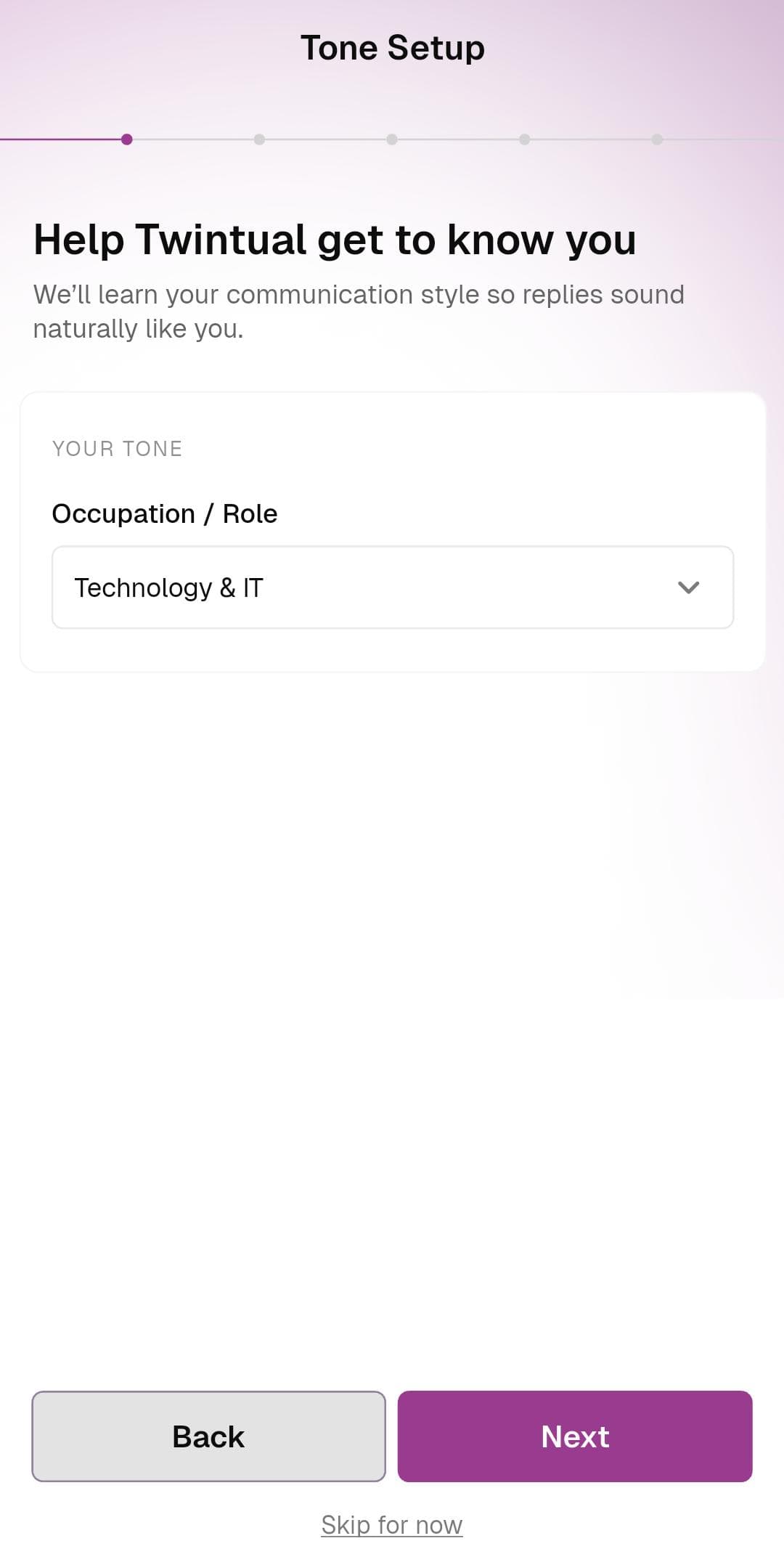
What to do: Open the dropdown, pick the option that best matches your work, then tap Next.
Step 2 · Preferred Tone
Next, choose your Preferred Tone from a dropdown — for example, Polite & Professional. This sets the overall personality of replies Twintual drafts on your behalf. A polite and professional tone keeps things courteous and business-appropriate, while other options would push replies to feel more casual or direct.
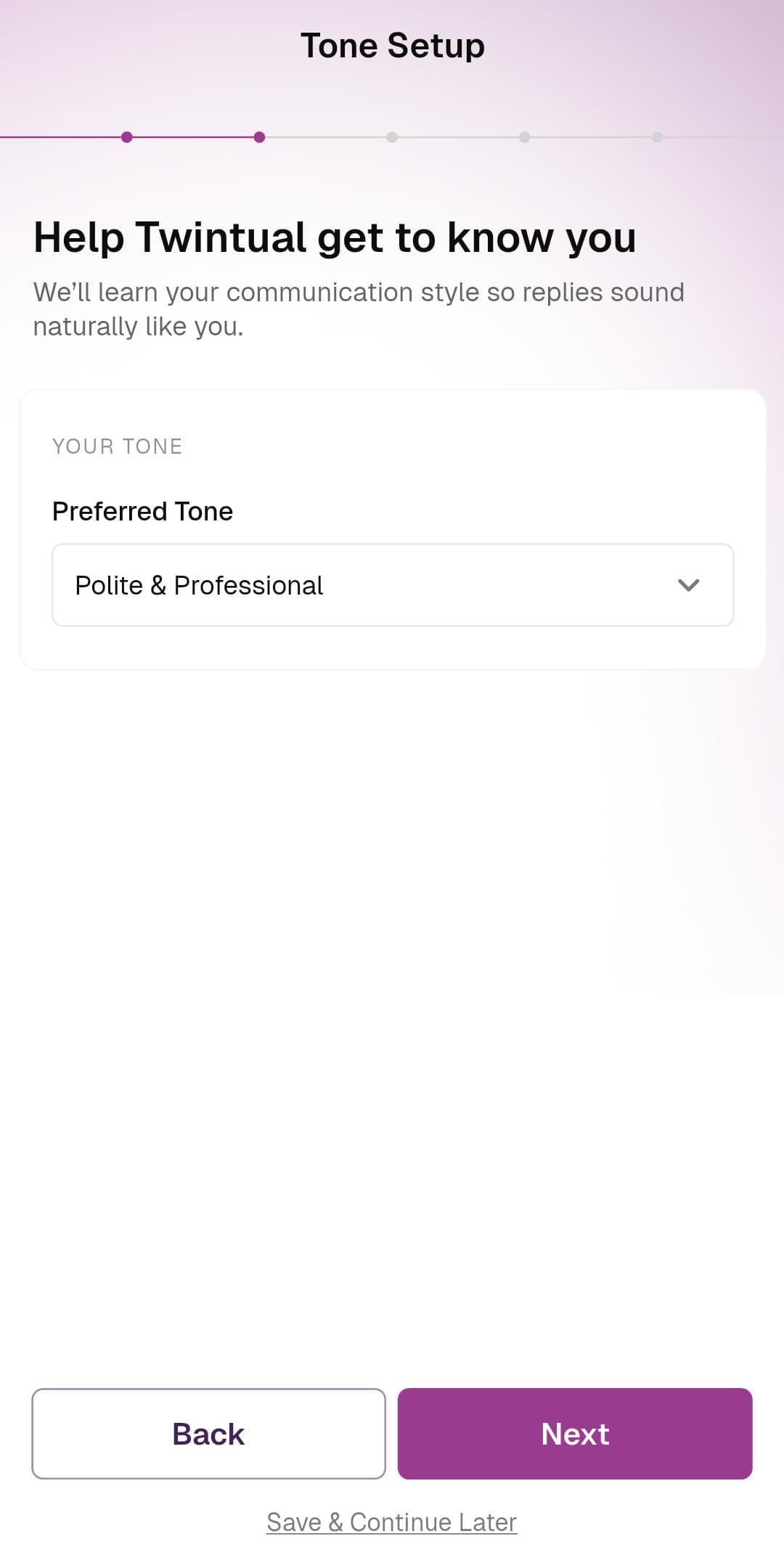
What to do: Pick the tone that feels closest to how you write, then tap Next.
Step 3 · Communication Focus
The third step controls the length and depth of replies. Pick one of:
- Concise — short, to-the-point replies
- Balanced — medium length, the default sweet spot
- Detailed — longer, more thorough replies
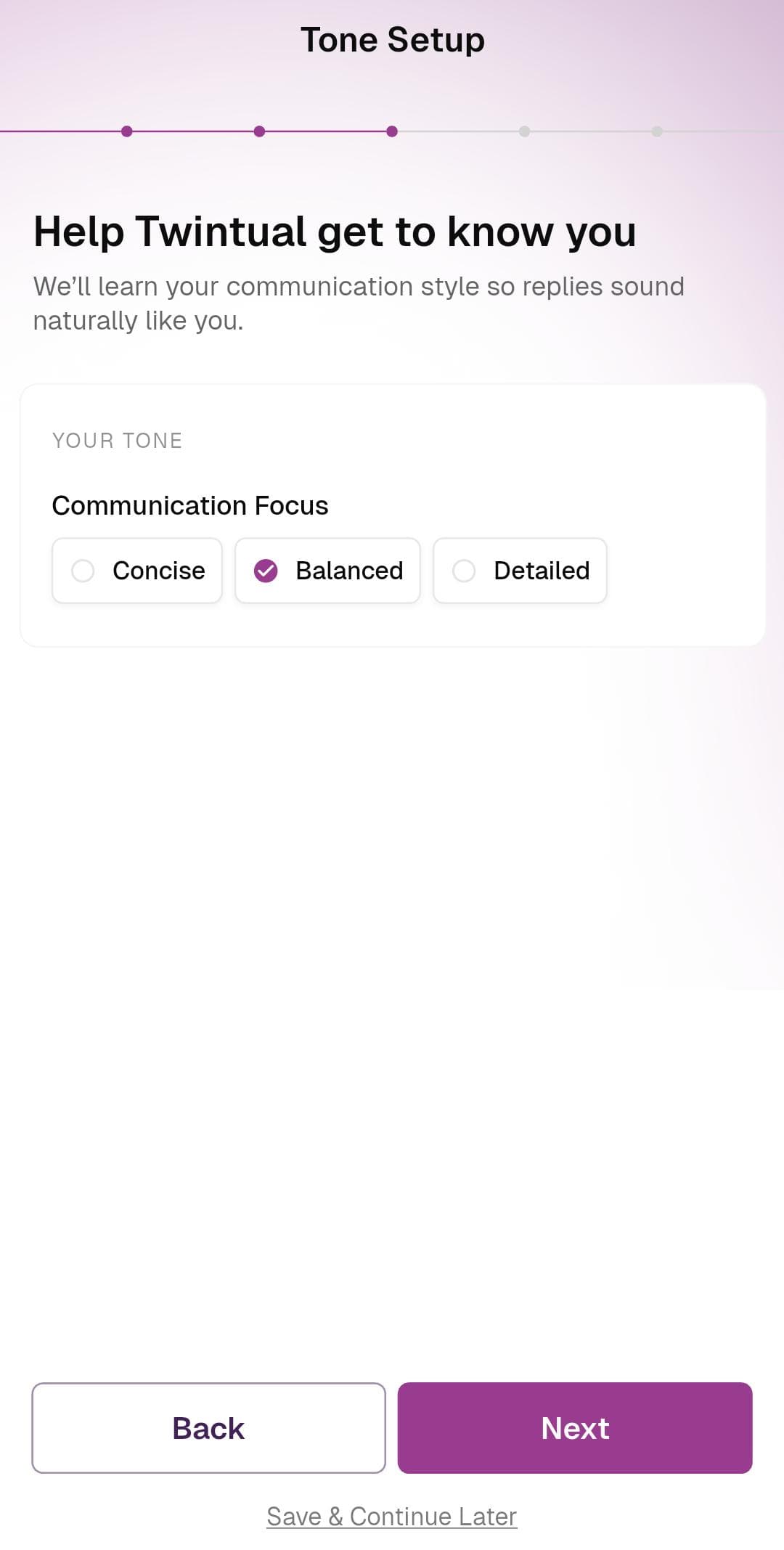
What to do: Tap the option you prefer (it'll show a purple checkmark when selected), then tap Next.
Step 4 · Language Level
The fourth step adjusts how formal or casual your replies sound. Pick one of:
- Simple — relaxed, everyday phrasing
- Neutral — balanced, works in most contexts
- Formal — buttoned-up, professional wording
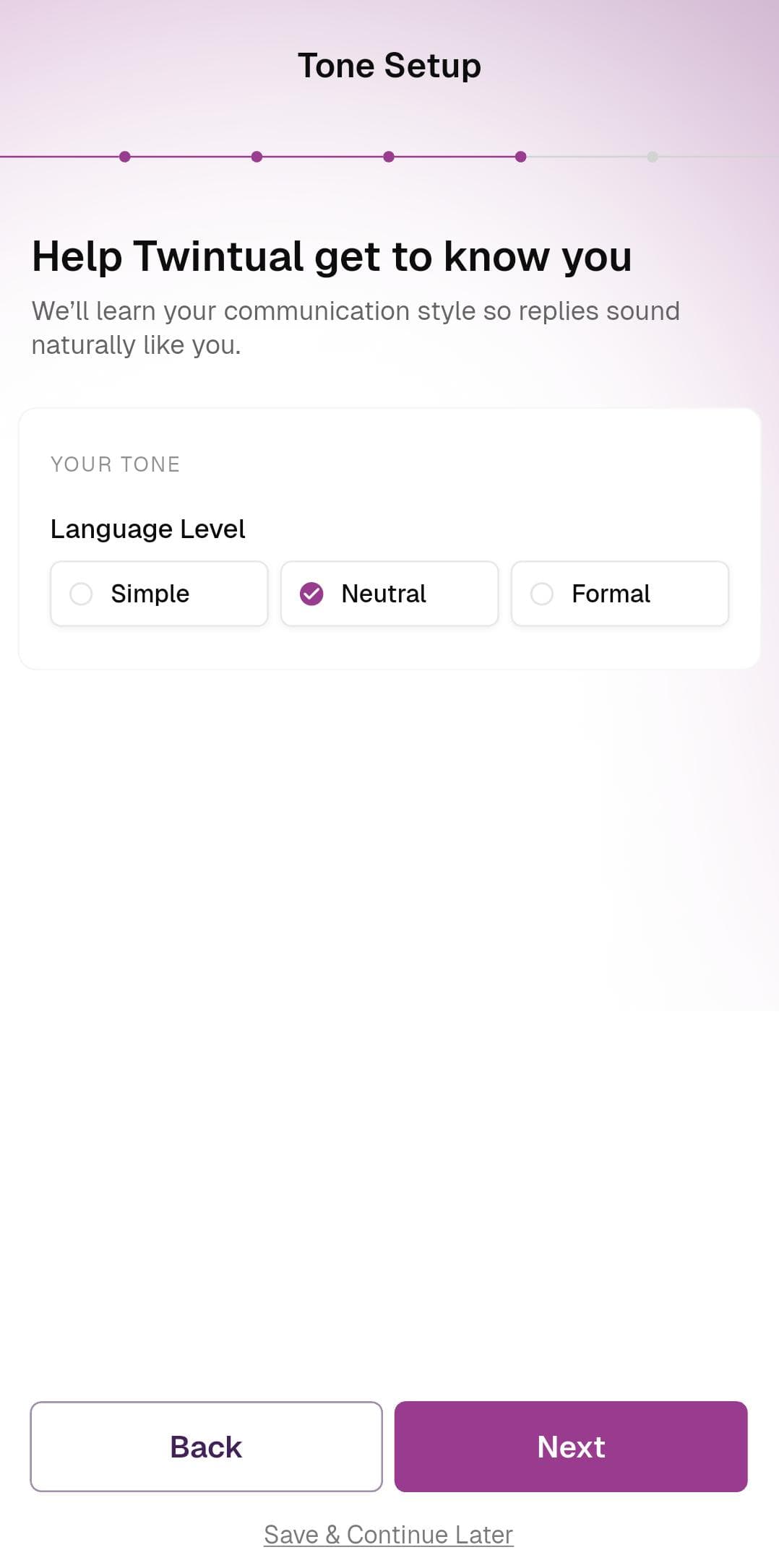
What to do: Tap your preferred language level, then tap Next.
Step 5 · Tone Learning
The final step is the most personal one. Twintual asks you to write a short prompt — usually a real reply you might send — so it can learn your actual voice. The example shown is "thankyou for getting back to me!", but anything that sounds like you works.
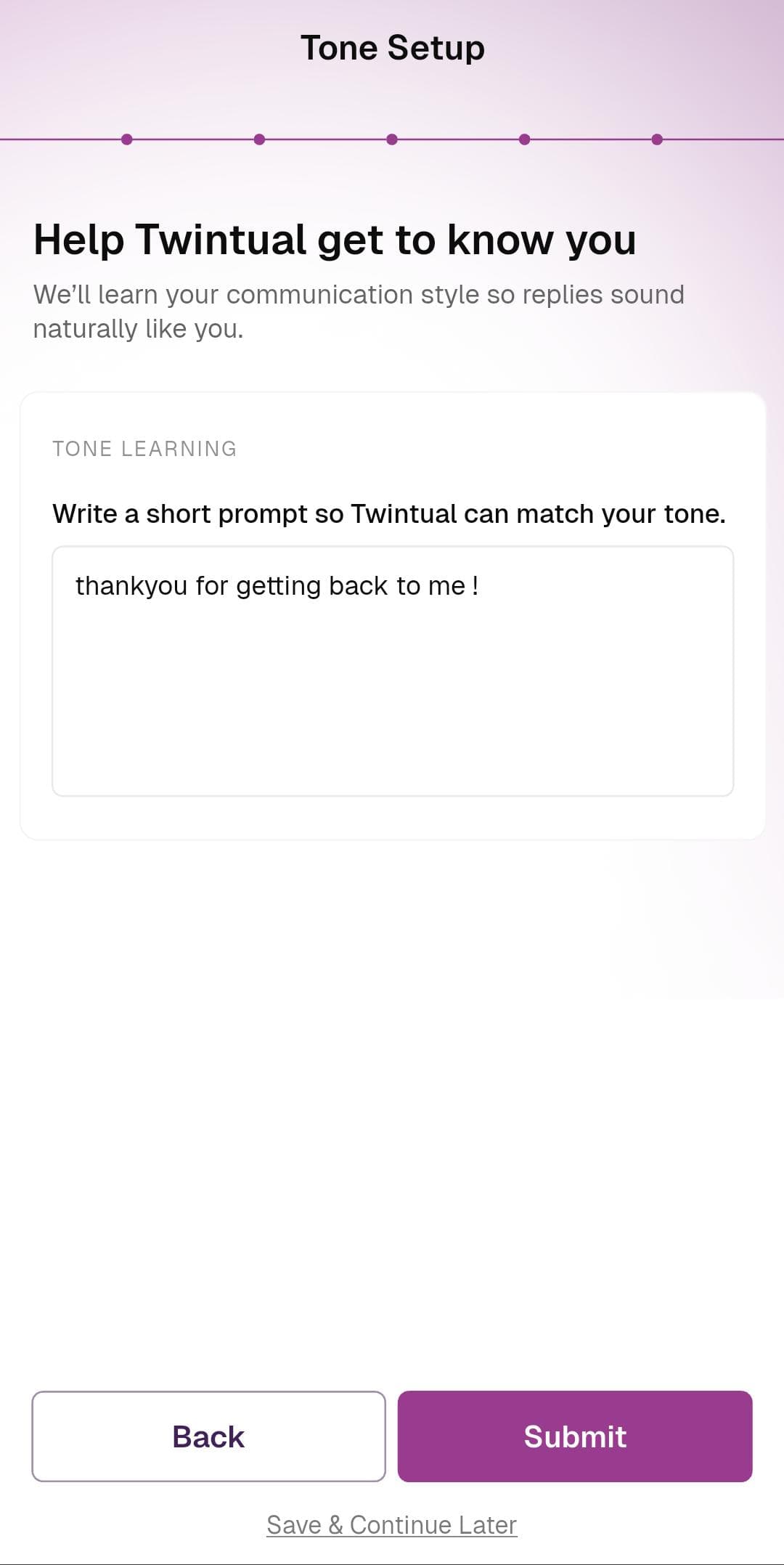
What to do: Type a short example of how you'd reply to someone in your own voice, then tap Submit.
Save & Continue Later
If you don't want to finish all five steps in one sitting, every step (except the first) shows a Save & Continue Later link at the bottom. Tapping it stores your progress so Tone Setup resumes from the exact step you left off the next time you open Twintual.
Next step
You're done with setup! Continue to Home Dashboard to see Twintual in action.