Twintual Profile Settings
Tap the More tab in the bottom navigation to reach your Profile screen. This is the control center for everything about your Twintual account — the profiles you've created, the contacts the app sees, your dashboard stats, your language, your subscription, and your privacy settings.
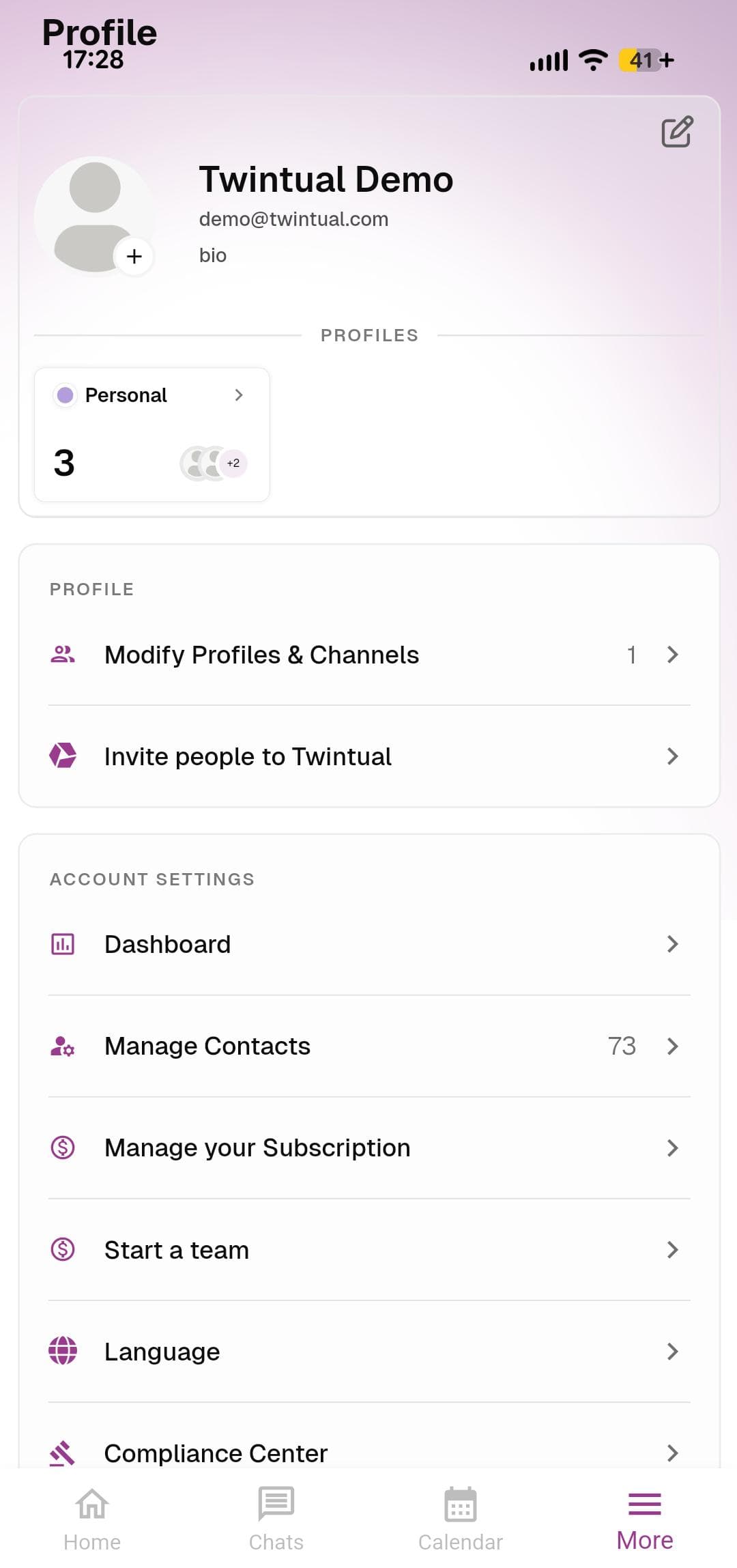
What's on this screen
Profile header — Your display name, email, and bio sit at the top with an edit icon in the top right. The plus button on your avatar lets you upload or change your profile picture.
Profiles card — A summary card showing the profile you're currently using (for example, Personal) and a count of channels connected under it. Tap it to switch between profiles.
Profile section — Two quick actions:
- Modify Profiles & Channels — manage your existing profiles or add new ones
- Invite people to Twintual — share a referral link and earn free months
Account Settings section — Everything related to your account day to day:
- Dashboard — see how much time Twintual has saved you
- Manage Contacts — review and merge duplicate contacts
- Manage Subscription — view and update your plan
- Start a Team — set up Twintual for your organization
- Language — switch the app language
- Compliance Center — legal documents, data exports, and account deletion
Each item has its own page with full step-by-step details — tap any link above or use the sidebar on the left.